
AI image upscaler
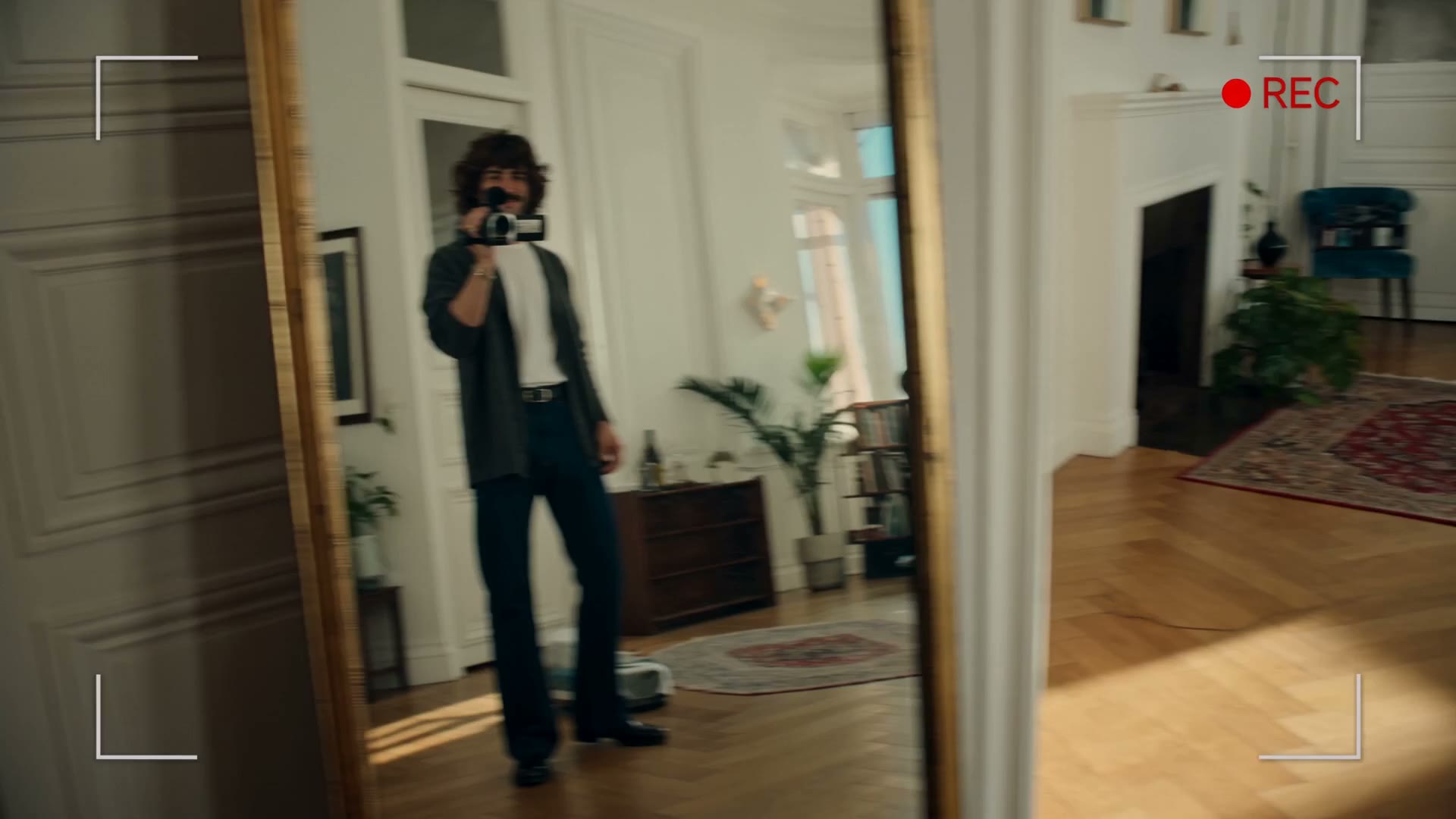
Enhanced old home video first frame after AI upscaling
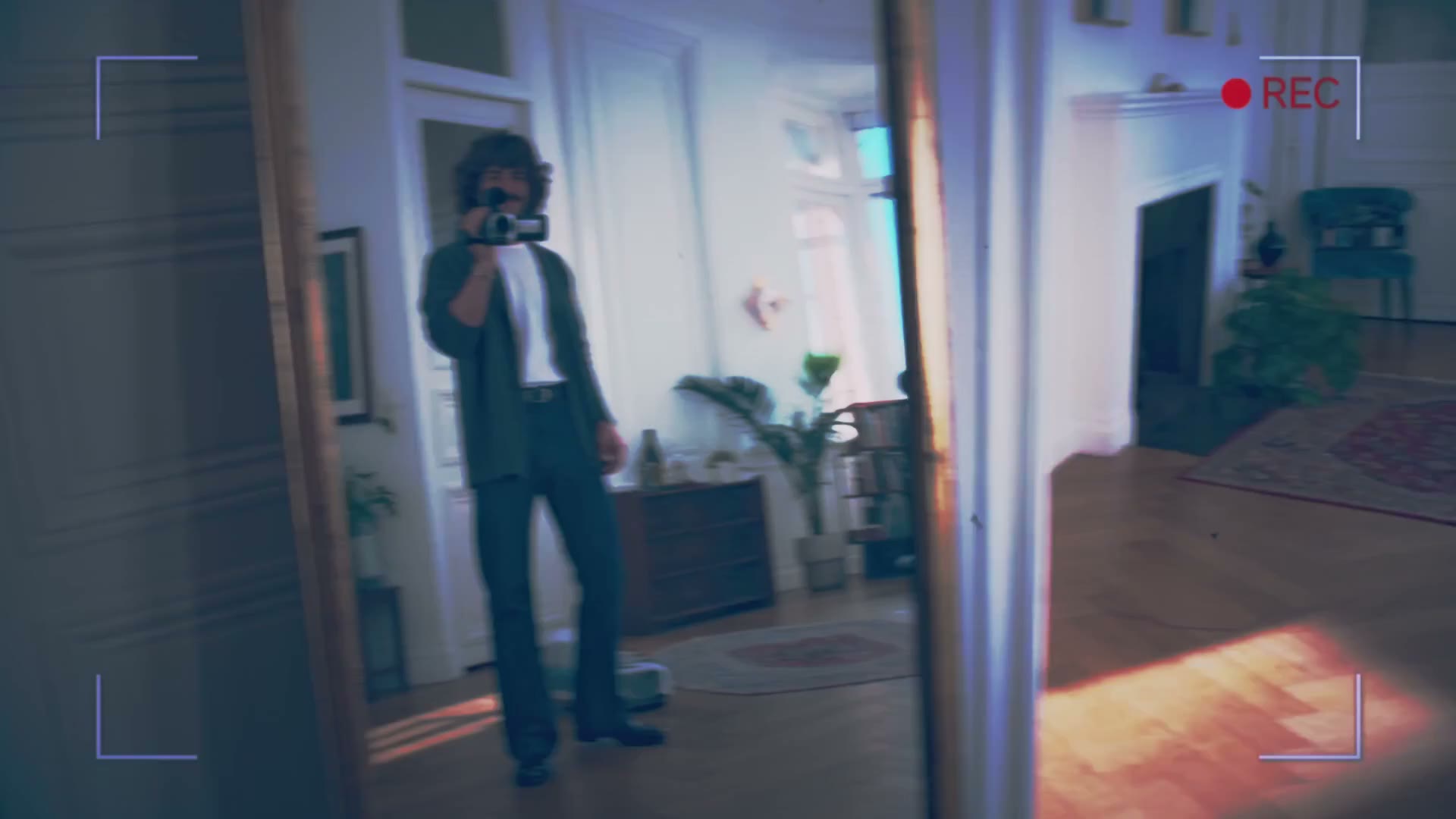
Original old home video first frame before AI upscaling
OriginalEnhanced
Static first frames from the AI video upscaler demoDrag to compare
Recent upscales Latest six

No upscales yet

Ready to upscale

Continue your Image AI workflow

Quick answer

4K Image Upscaler with Verifiable 2x/4x Output

AI image upscaling enlarges pixel dimensions and reconstructs edges and texture. This 4K image upscaler supports 2x and 4x, preserves aspect ratio, costs 20 site credits per image, and marks an output 4K UHD-ready only when it reaches at least 3840 x 2160 pixels.

Use the 4K image upscaler to increase image resolution to a known size, inspect the AI reconstruction, and keep the original available for comparison. The goal is not to attach a 4K label to every output. The workbench calculates size before processing and saves the completed result to History. Grok Imagine currently charges 20 site credits per image for either 2x or 4x.

Published July 29, 2026 · Last updated July 29, 2026

Input
JPG, PNG, or WebP · up to 10MB
Scale
2x or 4x
4K UHD check
At least 3840 x 2160 pixels
Site cost
20 credits per image

What the tool does

AI upscaling built around verifiable output

The 4K image upscaler combines the dimension calculator, scale controls, saved results, and comparison view in one continuous Image AI workflow.

Know whether the image can reach 4K

The workbench reads the source width and height, applies the selected multiplier, and shows the estimated output before credits are used. This distinguishes a true 4K-sized output from a result that is simply larger.

Choose a practical 2x or 4x enlargement

The 4K image upscaler doubles width and height at 2x for four times the pixel area. At 4x, it multiplies each dimension by four for sixteen times the pixel area, which is useful when a small source must fill a larger export.

Keep the original aspect ratio

The 4K image upscaler does not crop or stretch the source. Portrait, landscape, and square images keep their original proportions while their pixel dimensions increase.

Review the result in the same workflow

Completed upscales appear in the recent strip and History. When the source is recoverable, the preview exposes Original and Upscaled tabs so the enlargement can be judged instead of accepted on resolution alone.

Proof before claims

What you can verify while you upscale

The 4K image upscaler exposes operational evidence in the workbench itself: source dimensions, factor, estimated output, 4K readiness, cost, task state, saved result, and a recoverable source comparison.

Calculated dimensions

Upload an image and the 4K image upscaler reads its pixel width and height. Switching between 2x and 4x immediately changes the estimated output without spending credits.

Conditional 4K label

The 4K image upscaler shows 4K UHD-ready only when the calculated long edge reaches 3840 pixels and the short edge reaches 2160 pixels. Smaller estimates are described as larger images, not as 4K UHD outputs.

Durable task state

A pending 4K image upscaler job is stored separately from ordinary image generation. Refreshing or returning to the route resumes status polling while the server workflow continues.

Original and Upscaled review

When the source remains available, the 4K image upscaler exposes both views at the same canvas size. Recent results and the complete generation record remain accessible from History.

Four-step workflow

How to upscale an image to 4K with AI

The 4K image upscaler preserves a local upload and selected settings when login interrupts the task, then restores the same workbench after authentication.

  1. 01

    Upload the best source image

    Choose a JPG, PNG, or WebP up to 10MB. Start from the least-compressed original available because enlargement cannot recover every detail removed by blur, heavy JPEG compression, or an earlier resize.

  2. 02

    Choose 2x or 4x

    Use 2x for a moderate enlargement and 4x for the largest output. The 4K image upscaler multiplies both dimensions and labels the estimate as 4K UHD-ready only when the long edge reaches 3840 pixels and the short edge reaches 2160 pixels.

  3. 03

    Run the AI image upscale

    Review the estimated dimensions and the 20-site-credit cost, then start the task. The pending job and local upload are preserved if login or navigation interrupts the workflow.

  4. 04

    Compare and download

    Switch the 4K image upscaler between Original and Upscaled at the same preview size. Inspect faces, text, product labels, thin lines, repeated patterns, and high-contrast edges before downloading the saved result.

2x, 4x, and 4K

How are 2x, 4x, and 4K output dimensions calculated?

Use the 4K image upscaler at the smallest multiplier that reaches the delivery size. A larger pixel grid can support a larger layout, but it does not guarantee new factual detail.

4K image upscaler calculation: output width equals source width multiplied by the selected factor, and output height uses the same factor. This preserves the source aspect ratio.

Examples for 2x and 4x image upscaling toward 4K
SourceFactorEstimated output4K UHD-ready?Site creditsPractical choice
960 x 5404x3840 x 2160Yes20Use 4x to upscale image to 4K.
1920 x 10802x3840 x 2160Yes20Use 2x; 4x would exceed the usual target.
800 x 8004x3200 x 3200No20Larger square output, but do not call it 4K.
1024 x 13654x4096 x 5460Yes20Useful for a large portrait layout.

Reference notes: the ITU 4K UHD reference uses 3840 x 2160 pixels. Input types, the 10MB upload cap, scale factors, and the 20,000-pixel output boundary follow the current processing API specification.

Choose 2x when it already reaches the target

For a 1920 x 1080 source, the 4K image upscaler at 2x already produces 3840 x 2160. This is the direct option when the next layout needs standard UHD dimensions without an unnecessarily large file.

Choose 4x for smaller sources or larger layouts

A 960 x 540 source needs 4x to reach 3840 x 2160. Review faces, small text, repeated texture, and straight edges closely because a larger scale gives the model more pixels to reconstruct.

Typical jobs

When should you use a 4K image upscaler?

The best 4K image upscaler input is a usable image that needs more pixels for its next real destination.

Prepare a small AI image for a larger canvas

Starting input
A generated concept, character, scene, or product image that looks good but is too small for the next layout.
Tool action
Send the saved image into the 4K image upscaler, choose the smallest multiplier that reaches the delivery size, and review fragile details.
Expected result
A larger working file ready for editing, presentation, social publishing, or another creative pass.

Enlarge product and marketing images

Starting input
A compressed marketplace image, campaign asset, or product photograph that must occupy more pixels in a page or presentation.
Tool action
Use the 4K image upscaler on the cleanest source, then compare labels, straight edges, logos, material texture, and background transitions.
Expected result
A larger asset for layout work, with visible defects identified before it reaches a live campaign.

Upscale a photo toward a 4K display target

Starting input
A 960 x 540, 1280 x 720, 1920 x 1080, or similarly sized photo intended for a larger screen.
Tool action
Choose 2x or 4x in the 4K image upscaler according to the displayed output calculation. Use 4K UHD-ready as a size check, not a promise of new factual detail.
Expected result
A larger photo whose dimensions fit the target and whose faces, texture, and edge quality have been reviewed.

Practical limits

What a 4K image upscaler cannot guarantee

A 4K image upscaler increases resolution and can improve perceived clarity. It is not a substitute for correct focus, lossless source files, vector artwork, or factual verification.

4x does not always mean 4K

A 4K image upscaler multiplier describes how much each dimension grows. An 800 x 800 source becomes 3200 x 3200 at 4x, so it does not reach the 3840 x 2160 UHD reference even though its total pixel count is much larger.

AI reconstruction is an estimate

The model can create plausible texture and cleaner edges, but it cannot recover exact information that was never present. Critical identity, legal text, scientific detail, and product specifications need human verification.

Tiny text and logos can change

Small typography, watermarks, interface labels, signatures, and geometric brand marks are sensitive to reconstruction. Compare these regions at 100% zoom and replace them from vector or source files when precision matters.

The source still determines the ceiling

Strong motion blur, missed focus, clipped highlights, blocked shadows, and repeated compression artifacts may remain visible or become more obvious after enlargement. Use the cleanest original before applying the 4K upscale image step.

Input and output limits apply

The current tool accepts JPG, PNG, and WebP inputs up to 10MB. The provider caps the longest output edge at 20,000 pixels, preserves the source aspect ratio, and returns one upscaled image per task.

Resolution is not print quality by itself

Print sharpness also depends on physical size, viewing distance, paper, ink, and effective pixels per inch. Check the print provider specification after upscaling rather than treating the 4K label as a universal print standard.

Questions

4K image upscaler FAQ

Direct answers about 4K dimensions, 2x versus 4x, blurry photos, and truthful output labels.

What is a 4K image upscaler?

A 4K image upscaler is an image enlargement tool that increases pixel dimensions and uses AI reconstruction to refine edges and texture. This page marks an output 4K UHD-ready only when the long edge reaches 3840 pixels and the short edge reaches 2160 pixels. The completed file dimensions remain the final authority.

How do I upscale an image to 4K?

Upload a JPG, PNG, or WebP, choose 2x or 4x, and read the estimated output in the workbench. A 1920 x 1080 source reaches 3840 x 2160 at 2x; a 960 x 540 source reaches the same size at 4x. Start the task, compare Original and Upscaled, then download the result.

Does 4x upscale an image to 4K every time?

A 4x upscale does not always produce a 4K UHD image. Four times the dimensions is not the same as a fixed 4K target. Multiply the source width and height by four and check whether the output reaches at least 3840 x 2160 pixels. The workbench performs this calculation automatically.

Should I choose 2x or 4x image upscale?

Choose the smallest 4K image upscaler factor that reaches the required delivery dimensions. 2x is a moderate enlargement and is often enough for a 1920 x 1080 source. Use 4x for smaller sources or larger layouts, then inspect invented texture and fragile details more carefully.

Can an AI image upscaler fix a blurry photo?

An AI image upscaler can improve perceived edge clarity and generate plausible detail at a larger size, but it cannot restore exact focus or factual detail that the camera did not capture. Severe blur, faces, text, logos, and product details should be checked manually after processing.

Start with the dimensions

Upscale your image toward 4K

Open the 4K image upscaler, upload the cleanest source, verify the 2x or 4x estimate, and compare the saved result before download.

Upscale Image to 4K