
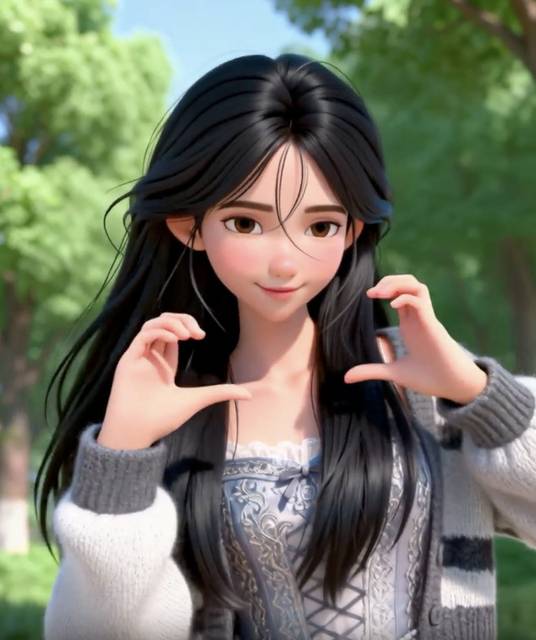
Sci-fi story
Robots on Mars preparation
Robots are sent to Mars first; some are tasked with living like humans in order to best prepare for their future arrival.
Sci-fi story
Robots are sent to Mars first; some are tasked with living like humans in order to best prepare for their future arrival.
Other tools
Move to another tool for image creation, image editing, text-to-video generation, video extension, or video upscaling.
Image to video
Grok Image to Video is a free-to-start workflow that turns one start frame or role-labeled references into an AI clip. Use Grok Image to Video for 1-15 second single-image clips at 480p or 720p, or choose a compatible multi-image model to combine people, products, and scenes. Generation uses credits, and results can be edited, extended, upscaled, restyled, downloaded, or reopened from History.
Real examples
These Grok AI image to video examples compare three Grok Image to Video workflows: one prepared frame, an item with a separate scene, and a four-reference sequence. Each case shows the inputs, output settings, prompt controls, and generated video.

A character source image becomes a vertical social clip while keeping the character visually consistent.
Prompt
MAIN SUBJECT: Keep the same face, hair, clothing, proportions, and appearance throughout. LOCATION: Late-afternoon garden path with moving leaf shadows, damp stones, distant trees, and intermittent breeze. ...
Core capabilities
Grok Image to Video combines single and multi-image inputs, model-aware reference roles, realistic prompt optimization, and result actions that support the next production step.
Grok Image to Video can start from one prepared frame or from role-labeled people, products, and scene references. Multi-image templates keep every upload tied to a clear job before generation.
The Grok Image to Video optimizer builds MAIN SUBJECT, LOCATION, VISUAL STYLE, CAMERA STYLE, TIMELINE, AUDIO, and TARGET. It adds device flaws, visible atmosphere, non-perfect events, and consistency checks.
Grok Image to Video matches the number and purpose of your references to compatible models. The workbench shows reference limits, duration, resolution, and audio support before credits are used.
Every Grok Image to Video result can continue to source editing, extension, upscaling, restyling, the video editor, download, or History instead of ending at the first draft.
Workflow
A Grok Image to Video workflow moves from prepared inputs to a structured motion prompt, then carries the generated result into editing, extension, upscaling, restyling, download, or History.
Start Grok Image to Video with one strong frame, or assign people, products, scenes, and custom roles in multi-image mode. Select a model that accepts every attached file.
The Grok Image to Video prompt optimizer expands the action into subject locks, location, visual and camera behavior, timing, audio, and a realistic target.
Review the Grok Image to Video result for identity, object shape, geography, motion, and sound. Then edit the source, extend, upscale, restyle, download, or revisit History.
Choose a mode and model
Choose a Grok Image to Video model by reference count and creative job, then check input mode, aspect ratio, duration, resolution, and audio support before spending credits.
| Setting | Available options | Best for |
|---|---|---|
| Reference setup | Single image; Two people; Product + scene; Person + product; Custom | A start frame, identity pairing, object placement, or a composed multi-reference scene. |
| Model matching | Grok Imagine 1.5: 1 image; Grok Imagine: up to 7; Seedance 2.0 / Fast: up to 9 | Choosing a compatible model before uploading several people, objects, or scene references. |
| Aspect ratio | 2:3, 3:2, 1:1, 9:16, or 16:9 | Vertical Shorts and Reels, square feed posts, wide previews, and ecommerce media. |
| Duration | 1 to 15 seconds with Grok Imagine 1.5 | Fast motion tests, social drafts, looping visuals, and 15-second concept previews. |
| Resolution | 480p or 720p | Quick low-cost drafts at 480p or sharper review clips at 720p. |
Use cases
Use Grok Image to Video when a product, character, or campaign concept already has a visual direction and needs a short motion draft for review, testing, or publishing.
Use Grok Image to Video with a product photo, or combine the item with a separate scene reference. Add a slow camera move or light change for ads, landing pages, social posts, and ecommerce tests.
Grok Image to Video can animate a character pose, portrait, poster, or concept image while the prompt guides hair movement, facial direction, atmosphere, and camera behavior.
Animate Images With Grok by starting from a thumbnail, scene mockup, travel image, or campaign visual. Grok Image to Video creates short motion drafts for TikTok, Reels, Shorts, or X before the final edit.
Quality control
Grok Image to Video still depends on source quality, model support, and human review. Check rights, identity, object details, text, hands, audio, and resolution before public or paid use.
FAQ
Direct Grok Image to Video answers about input modes, compatible models, realistic prompt optimization, generation costs, and available result actions.
Grok Image to Video uses one start frame or role-labeled references to create an AI clip. Images establish people, products, or a scene; the motion prompt controls action, camera, timing, audio, and continuity.
Use Grok Image to Video single-image mode when one frame already contains the scene. Choose multi-image mode when people, products, and locations come from separate files and need explicit roles.
Grok Image to Video supports different reference limits by model. The standard Grok model accepts 7 references; Seedance 2.0 and Fast accept 9, while version 1.5 accepts one image and supports 1-15 seconds at 480p or 720p.
The Grok Image to Video optimizer expands a direction into MAIN SUBJECT, LOCATION, VISUAL STYLE, CAMERA STYLE, TIMELINE, AUDIO, and TARGET. This Grok AI image to video process adds device flaws, visible atmosphere, non-perfect events, and consistency checks.
A Grok Image to Video result can continue to source editing, extend, upscale, restyle, the video editor, download, or History. Credit availability is shown in the workbench before generation.
Ready to animate your image?