
Worn oak boards
Prompt
Top-down square view of worn oak boards, even soft light, no furniture, no walls, and no text.
Check
Look for board scale, color variation, and a straight-on view.
AI Texture Generator
Continue with a surface image
Images on these cards come from adjacent tools. They are not results from the AI texture generator.
Quick answer
An AI texture generator turns a surface description into square color images of that material.
Use it for a flat look at wood, stone, fabric, metal, plaster, or paper before a 3D material exists.
Default Grok Imagine returns up to 6 images at Standard quality and up to 4 at High quality. A reference photo limits that run to 1 image.
The AI texture generator does not export normal, roughness, metallic, or height maps, and it does not prove a seamless texture.
Published October 9, 2026 · Last updated October 9, 2026
Examples
These recipes describe a surface the AI texture generator can attempt. They are writing examples, not saved outputs from this workbench.
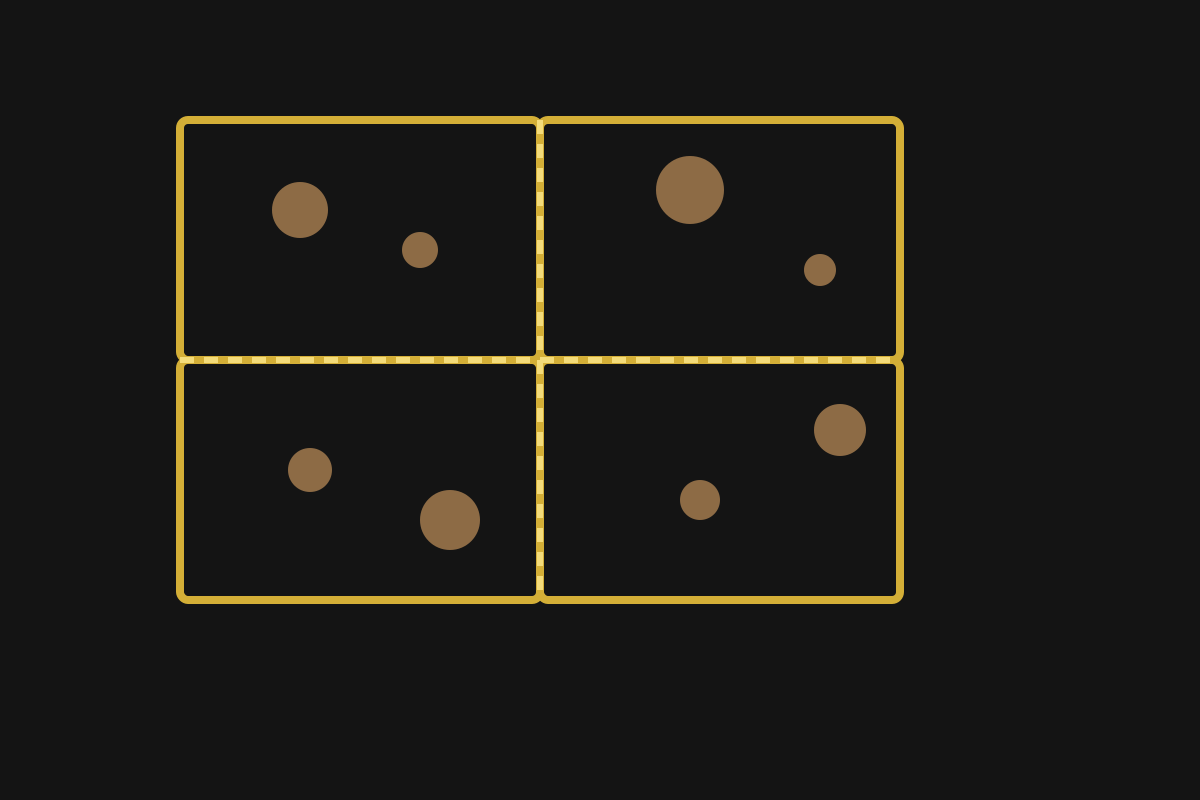
The diagram shows where to look for a grid after you repeat an AI texture generator image. It is a guide, not a material render.
If the center lines jump in color or shadow, the repeat is not clean. Generate again with a flatter light description before you cover a wall or floor.
No saved workbench result is shown here. Default Grok Imagine can return up to 6 images, and a reference photo limits that run to 1 image.
Prompt
Top-down square view of worn oak boards, even soft light, no furniture, no walls, and no text.
Check
Look for board scale, color variation, and a straight-on view.
Prompt
Flat fieldstone with damp moss in the joints, even daylight, square crop, surface only.
Check
Look for stone size and whether the light stays even across the crop.
Prompt
Brushed aluminum sheet, fine horizontal grain, neutral studio light, no bolts or edges.
Check
Look for a consistent grain direction and no object silhouette.
Prompt
Close square view of natural linen weave, soft even light, no folds, no garment, no label.
Check
Look for thread scale and a crop that does not turn into clothing.
Capabilities
The AI texture generator has four controls. Each one changes the color image. None of them creates a normal, roughness, metallic, or height map.
A square frame gives the AI texture generator a swatch instead of a poster. Name the material, its condition, and the scale you want to see.
Start from words when you do not have a material sample. Square images you can inspect before any later edit. The default run can return more than one.
A reference photo can steer the AI texture generator toward a material you already photographed. Grok Imagine then returns 1 image, and the original photo stays unchanged.
Keep a photographed material in the same family. A related surface image, with the original photo still unchanged.
Starter prompts keep the AI texture generator on a surface instead of a scene. Tap one, then change only the wear, color, or scale.
Skip the blank box when you know the material but not the wording. A prompt filled with a flat, evenly lit material description.
After the image looks right, enlarge or edit it. The AI texture generator does not replace the upscaler or the image editor.
Spend the next credit on a surface that already looks right. A handoff to a larger file or a revised version of the same image.
Workflow
Follow four steps in the AI texture generator. It keeps the prompt, settings, and result in this browser until you clear them.
Name the material, its wear, and the scale. Ask the AI texture generator for a flat, evenly lit surface with no object in frame.
Keep the AI texture generator aspect ratio at 1:1 unless the layout needs another shape. A square crop is easier to compare and repeat.
After the AI texture generator returns the images, tile one result in a 2 by 2 grid and inspect the center cross. The tool does not run a seam test.
Download an AI texture generator image only after its color and scale are usable. A larger file still starts from that image, so fix the surface before the next run.
When the square image is worth keeping, enlarge it with the AI image upscaler or change the wear in the AI image editor.
Choice
Match the job to the input before you spend credits. Only the Material swatch row is the main job of this AI texture generator.
| Job | Starting input | Use it when | Go elsewhere when |
|---|---|---|---|
| Material swatch | Words such as worn oak, mossy stone, or brushed metal | You need one square image of that surface. | You need separate normal, roughness, metallic, or height files. |
| Photo-guided surface | One material photo plus a short change | You want a new image in that material family. | The photo must stay pixel-identical. |
| Scene or product shot | A subject, room, or packaged product | Do not force that job through the AI texture generator. | Use the Grok image generator for the full scene. |
| Larger delivery file | A square image you already accept | The surface itself is already good. | Use the AI image upscaler when only the pixel size is short. |
Use cases
These are the jobs the square image can actually carry. Each one starts with a surface and ends with a review, not a finished material.
User. A concept artist blocks a prop before a material pass.
Input. The artist starts with a short description of worn metal, painted plastic, or scratched paint.
Action. The artist asks the AI texture generator for a worn metal swatch, then places that image under a prop mockup.
Result. The mockup gets a temporary surface reference with a visible scale and color.
User. A designer compares finishes for a board or client note.
Input. The designer starts with fabric, stone, plaster, or timber described in plain words.
Action. The designer generates two or three square crops and keeps the one whose weave, grain, or joint size matches the board.
Result. The board gets a small set of surface images next to the room concept.
User. A prototype needs a stand-in before authored maps exist.
Input. The prototype starts with a material name and the size of the detail, such as small bricks or wide boards.
Action. The prototype uses an AI texture generator image as temporary base color while a material artist builds real maps.
Result. The layout check gets a color image, and the PBR set stays with the material artist.
Limits
Read these limits before you spend credits or send the image into a 3D tool.
The AI texture generator does not export normal, roughness, metallic, or height maps. A color image is not an albedo map or a base color map with lighting data, so it cannot tell a renderer how a surface should catch light.
A prompt can ask for a seamless texture or a tileable texture, but the model may still leave a visible seam. Repeat one result and check the center cross before you cover a large surface.
If you need a scene, a product, or a person, do not force that job through the AI texture generator. Those prompts pull in perspective, shadows, and objects.
Repeated logos, tiny labels, and exact pattern spacing are unreliable. Replace those from source art when the spacing has to be precise.
Grok Imagine accepts up to 5 reference photos and a prompt of up to 5000 characters. A reference photo limits that run to 1 image. Changing the model can change both caps.
Grok Imagine Standard costs 20 credits per run. High costs 25 credits per run. Another model can show a different cost before you generate. New accounts start with 30 credits, and a download may require a credit pack or plan.
For a room, product, or character, use the Grok image generator instead of a surface prompt.
FAQ
Straight answers about what the AI texture generator returns and what it refuses.
An AI texture generator makes square color images of a surface from text or a guiding photo. Default Grok Imagine can return up to 6 images at Standard quality and up to 4 at High quality. A reference photo limits that run to 1 image. It is a swatch tool, not a material library or a 3D preview.
No. The AI texture generator can be asked for a seamless texture, but nothing in the workbench proves the edges meet. Repeat one result and look for a grid before you use it on a large surface.
No. The AI texture generator returns color images, not a PBR set. Normal, roughness, metallic, and height maps are not part of the result. Build those in a material tool if the render needs them.
Name the material, its condition, the scale of the detail, and even lighting. Say that the view is top-down and that no object, room, or label should appear. On Grok Imagine, the prompt can be up to 5000 characters.
Yes, when the selected model accepts a reference image. Grok Imagine accepts up to 5 photos and then returns 1 image. Add a short change, such as more wear or a cooler color. The original file stays as it was.
Next step
Open the AI texture generator, describe the material, and inspect the square image before you enlarge or edit it.
Generate a surface