
Grok Image to Video

Recent Generations

More Creations
Featured long video

Sci-fi story

Robots on Mars preparation

Robots are sent to Mars first; some are tasked with living like humans in order to best prepare for their future arrival.

SpaceX engine explainer

Super 8 beach wave

xAI intern comedy

Yoga forward fold

Other tools

More AI Image & Video Tools

Move to another tool for image creation, image editing, text-to-video generation, video extension, or video upscaling.

Grok Image to Video

Free Online Grok Image to Video Generator with Fewer Limits

What is Grok Image to Video?

Grok Image to Video is a free-to-start workflow that turns one start frame or role-labeled references into an AI clip. Use Grok Image to Video for 1-15 second single-image clips at 480p or 720p, or choose a compatible multi-image model to combine people, products, and scenes. Generation uses credits, and results can be edited, extended, upscaled, restyled, downloaded, or reopened from History.

Single image
Grok Imagine 1.5 · 1 image · 1–15s · 480p/720p
Multiple references
Grok Imagine · up to 7 · Seedance 2.0 · up to 9
Next steps
Edit source · Extend · Upscale · Restyle · Download

Real examples

Grok Image to Video examples: single and multi-image results

These Grok AI image to video examples compare three Grok Image to Video workflows: one prepared frame, an item with a separate scene, and a four-reference sequence. Each case shows the inputs, output settings, prompt controls, and generated video.

Single-image Grok Image to Video example

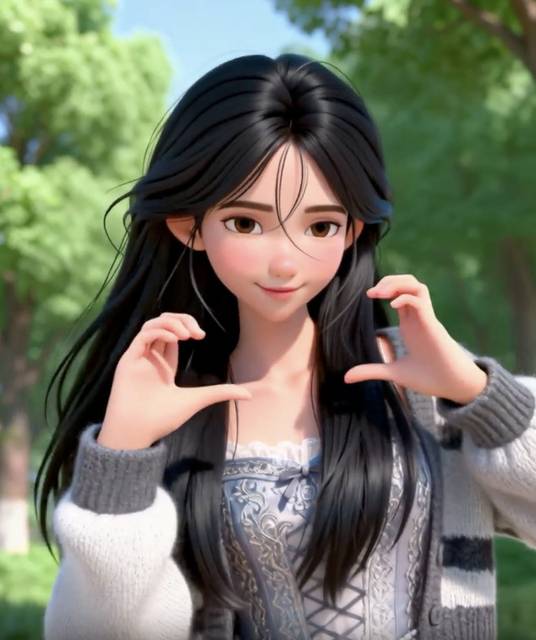
Character image used as the input for an image to video motion example
Input image
Output video
9:16 · 6s · 720pSample workflow

Character image to social motion

A character source image becomes a vertical social clip while keeping the character visually consistent.

Prompt

MAIN SUBJECT: Keep the same face, hair, clothing, proportions, and appearance throughout.
LOCATION: Late-afternoon garden path with moving leaf shadows, damp stones, distant trees, and intermittent breeze.
...

Multi-image Grok Image to Video examples

Multi-image mode assigns a purpose to every upload. The examples below combine an item with a scene and a custom four-reference setup.

Product + scene

Two references become one product advertisement

This Grok Image to Video case uses the bathroom to establish lighting and geography. The separate item reference protects package shape, color, and label identity while the video builds a handheld skincare ad.

Warm bathroom used as the scene reference
Scene
Moonmilk Glow Mask tube used as the item reference
Item
Generated ad
Inputs
2 role-labeled references: package + scene
Output
5 seconds · 1280 × 720
Prompt controls
Package identity, scene lighting, handheld reveal
Observed result
The package is placed inside the supplied bathroom scene
Custom 4 references

Four references become a continuity-focused coastal sequence

This Grok Image to Video case locks two identity sheets, one vehicle, and one location into a connected coastal sequence. The prompt also controls rider roles, screen direction, cuts, optics, physics, film texture, and sound.

Coastal railway crossing used as the location reference
Location
Young man identity sheet used as the driver reference
Person A · driver
Young woman identity sheet used as the passenger reference
Person B · passenger
Mint scooter used as the vehicle reference
Product · scooter
Generated coastal sequence
Inputs
4 references: 2 people + scooter + location
Output
15 seconds · 1280 × 960
Sequence
4 segments · 2 hard cuts · 1 insert cut
Continuity locks
Roles, travel direction, lenses, physics, sound, film texture

Current Optimize Prompt advantage

A rough idea is rebuilt into seven stable sections, with device artifacts, observable atmosphere, a duration-matched shot count, one unique non-perfect event per shot, matching audio, identity locks, and a silent consistency check. It is the faster starting point for most drafts.

What this advanced case adds

The supplied production spec explicitly maps every reference, blocks the first frame, locks lenses per segment, names hard and insert cuts, defines physics, and repeats positive continuity locks. It offers tighter manual control for a complex sequence, but should be trimmed to the selected model's prompt limit before generation.

Production prompt preview

SCENE CONTEXT
A bright summer afternoon on the coastal road: the young man drives the mint scooter down toward the sea with the young woman riding behind him, arms around his waist — an easy, happy ride past the railway crossing along the water.

ACTIVE REFERENCES
<<<image_1>>> — young woman, 20 years old, 165 cm tall, slender, straight dark brown hair with side-swept bangs pinned by a small black clip, freckles across her cheeks and nose. 100% matches the reference.

Core capabilities

Core Grok Image to Video capabilities

Grok Image to Video combines single and multi-image inputs, model-aware reference roles, realistic prompt optimization, and result actions that support the next production step.

Single-image and role-aware multi-image inputs

Grok Image to Video can start from one prepared frame or from role-labeled people, products, and scene references. Multi-image templates keep every upload tied to a clear job before generation.

Seven-section realistic motion prompts

The Grok Image to Video optimizer builds MAIN SUBJECT, LOCATION, VISUAL STYLE, CAMERA STYLE, TIMELINE, AUDIO, and TARGET. It adds device flaws, visible atmosphere, non-perfect events, and consistency checks.

Model-aware reference matching

Grok Image to Video matches the number and purpose of your references to compatible models. The workbench shows reference limits, duration, resolution, and audio support before credits are used.

Result actions for the next production step

Every Grok Image to Video result can continue to source editing, extension, upscaling, restyling, the video editor, download, or History instead of ending at the first draft.

Workflow

How to use Grok Image to Video in three steps

A Grok Image to Video workflow moves from prepared inputs to a structured motion prompt, then carries the generated result into editing, extension, upscaling, restyling, download, or History.

  1. 1

    Prepare one image or assign multiple roles

    Start Grok Image to Video with one strong frame, or assign people, products, scenes, and custom roles in multi-image mode. Select a model that accepts every attached file.

  2. 2

    Build one clear motion direction

    The Grok Image to Video prompt optimizer expands the action into subject locks, location, visual and camera behavior, timing, audio, and a realistic target.

  3. 3

    Generate, review, and continue from the result

    Review the Grok Image to Video result for identity, object shape, geography, motion, and sound. Then edit the source, extend, upscale, restyle, download, or revisit History.

Grok Image to Video source before editing the first frame
Before: weak first frame
Grok Image to Video source after editing the first frame
After: video-ready frame

Step 1 · Best input

Prepare a video-ready first frame

Grok Image to Video inherits exposure, composition, blur, text, and object defects from its opening image. Correct a weak source in the image editor instead of asking the motion prompt to repair the scene while it animates.

Edit the first frame

Step 2 · Prompt

Build a realistic Grok Image to Video prompt

The Grok Image to Video optimizer turns one motion direction into MAIN SUBJECT, LOCATION, VISUAL STYLE, CAMERA STYLE, TIMELINE, AUDIO, and TARGET. It adds camera imperfections, visible atmosphere, one non-perfect event per shot, and a consistency check before generation.

Step 3 · Results

Continue every Grok Image to Video result

Every Grok Image to Video result can continue to source-image editing, video extension, upscaling, restyling, video editing, download, or History instead of ending at the first draft.

Choose a mode and model

Choose the right model and input mode

Choose a Grok Image to Video model by reference count and creative job, then check input mode, aspect ratio, duration, resolution, and audio support before spending credits.

ModelInput modeMax imagesDurationResolutionBest fit
Grok Imagine 1.5Single image11–15s480p / 720pOne-frame clips up to 15 seconds
Grok ImagineSingle or multi-image76–30s480p / 720pLower-cost multi-reference drafts
Seedance 2.0Single or multi-image94–15s480p / 720p / 1080p / 4KHigh-quality multi-reference video with audio
Seedance 2.0 FastSingle or multi-image94–15s480p / 720pFaster multi-reference video with audio

Model limits are generated from the current workbench configuration. Verified July 24, 2026.

Input and output settings

SettingAvailable optionsBest for
Reference setupSingle image; Two people; Product + scene; Person + product; CustomA start frame, identity pairing, object placement, or a composed multi-reference scene.
Aspect ratio2:3, 3:2, 1:1, 9:16, or 16:9Vertical Shorts and Reels, square feed posts, wide previews, and ecommerce media.
Duration1 to 15 seconds with Grok Imagine 1.5Fast motion tests, social drafts, looping visuals, and 15-second concept previews.
Resolution480p or 720pQuick low-cost drafts at 480p or sharper review clips at 720p.

Use cases

Grok Image to Video use cases

Use Grok Image to Video when a product, character, or campaign concept already has a visual direction and needs a short motion draft for review, testing, or publishing.

1

Turn product images into short promo clips

Use Grok Image to Video with a product photo, or combine the item with a separate scene reference. Add a slow camera move or light change for ads, landing pages, social posts, and ecommerce tests.

2

Animate characters, portraits, or AI artwork

Grok Image to Video can animate a character pose, portrait, poster, or concept image while the prompt guides hair movement, facial direction, atmosphere, and camera behavior.

3

Create social video drafts from visual concepts

Animate Images With Grok by starting from a thumbnail, scene mockup, travel image, or campaign visual. Grok Image to Video creates short motion drafts for TikTok, Reels, Shorts, or X before the final edit.

Quality control

Input limits and quality checks

Grok Image to Video still depends on source quality, model support, and human review. Check rights, identity, object details, text, hands, audio, and resolution before public or paid use.

  • 1Use rights-cleared images in Grok Image to Video, and upload private portraits or brand assets only with permission.
  • 2Single-image and multi-image support depends on the selected model; use the Grok Image to Video model table to check current reference limits.
  • 3Identity, package details, tiny text, complex hands, and crowded scenes require review.
  • 4Audio and 4K output are model-dependent; Grok Imagine 1.5 supports 480p and 720p without generated audio.
  • 5Opening the workspace is free, but video generation uses the credit cost shown before you generate.
  • 6Generated clips should be reviewed before ads, client work, ecommerce pages, or public social posts.

FAQ

Questions about image animation

Direct Grok Image to Video answers about input modes, compatible models, realistic prompt optimization, generation costs, and available result actions.

What is Grok Image to Video?

Grok Image to Video uses one start frame or role-labeled references to create an AI clip. Images establish people, products, or a scene; the motion prompt controls action, camera, timing, audio, and continuity.

Should I use single-image or multi-image mode?

Use Grok Image to Video single-image mode when one frame already contains the scene. Choose multi-image mode when people, products, and locations come from separate files and need explicit roles.

Which models support multiple image references?

Grok Image to Video supports different reference limits by model. The standard Grok model accepts 7 references; Seedance 2.0 and Fast accept 9, while version 1.5 accepts one image and supports 1-15 seconds at 480p or 720p.

How does the realistic video prompt optimizer work?

The Grok Image to Video optimizer expands a direction into MAIN SUBJECT, LOCATION, VISUAL STYLE, CAMERA STYLE, TIMELINE, AUDIO, and TARGET. This Grok AI image to video process adds device flaws, visible atmosphere, non-perfect events, and consistency checks.

What can I do after a video is generated?

A Grok Image to Video result can continue to source editing, extend, upscale, restyle, the video editor, download, or History. Credit availability is shown in the workbench before generation.

Ready to animate your image?

Animate Images With Grok from one frame or several references.