
Grok Imagine Image 2.0

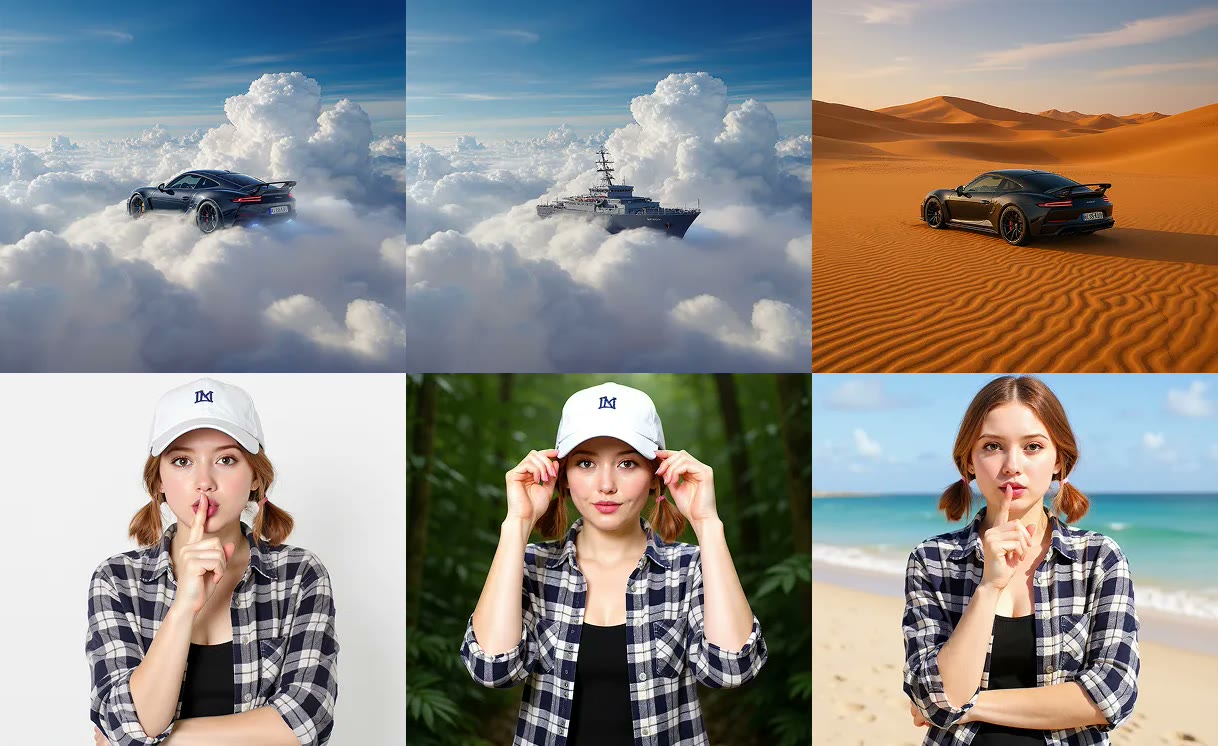
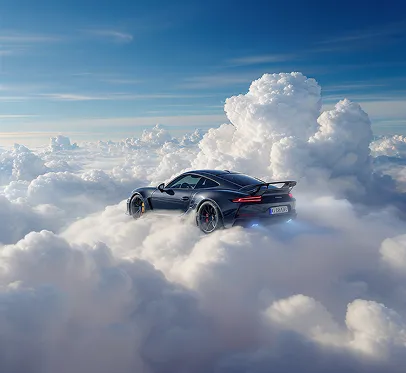
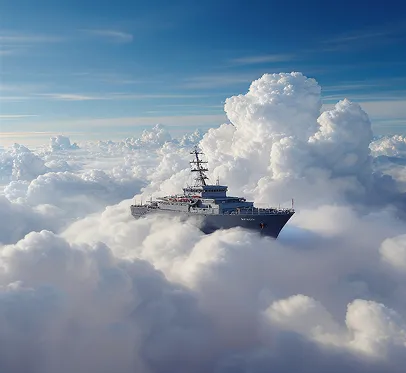
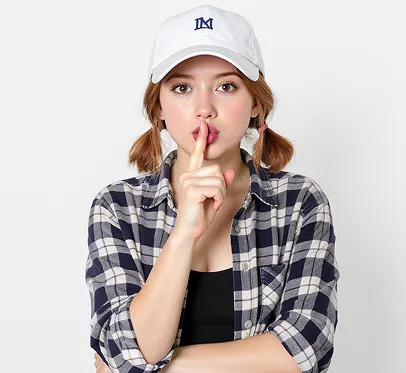
Sample collage showing the Grok Imagine 2.0 editing layout, not a confirmed model output
Sample editing layout
Session history
Images generated in this session will appear here.

Quick answer

Grok Imagine Image 2.0

Grok Imagine Image 2.0 includes six functions: Precise prompt following, Sharper typography, Precise editing, Multiple visual references, Smart resize, and Consistent visual worlds.

Grok Imagine Image 2.0 sends Text to Image from the description alone. Image to Image keeps a source picture in the frame and can use up to five references. Pick one aspect ratio, generate, and check the still before you download. Each run uses 20 credits. A new account gets 30 credits, enough for one still.

The samples below show the layout for these jobs. They are not a confirmed Grok Imagine Image 2.0 benchmark, and this page is not grok.com Quality Mode.

Published October 9, 2026 · Last updated October 9, 2026

Open the workbench

Workbench details

Functions
Text to Image, Image to Image, multi-reference edits, and five frames
References
None in text mode, or 1–5 JPG, PNG, or WebP files in image mode
Aspect ratios
1:1, 2:3, 3:2, 16:9, and 9:16
Credits
20 credits per still. No separate quality or 2K control.

Examples

What can Grok Imagine Image 2.0 change?

Use Grok Imagine Image 2.0 for a new frame, or a source still when one object, background, or layout should change. These pictures are layout samples.

Sample still used to show a Grok Imagine Image 2.0 text prompt layout, not a confirmed model output

A poster from the prompt alone

Sample
Workbench layout sample, not a live model render
Prompt
A square tea poster: a red panda under cherry blossoms, large title “Afternoon Tea”, small line “Golden hour”, watercolor, centered type.
Setting
Text to Image, 1:1, 20 credits

Text to Image in Grok Imagine Image 2.0 sends the prompt and the aspect ratio only. Put the headline in the prompt when the still needs readable type.

Sample product still used to explain an object-change layout

One object change on a product still

Sample
Product still used as a layout sample
Prompt
Replace the speaker grille with a brushed-metal mesh. Keep the bottle shape, label, lighting, and studio background.
Setting
Image to Image, 1 reference, 3:2

Image to Image on Grok Imagine Image 2.0 needs at least one source file. Name the part that changes and the parts that stay.

Sample portrait used to show a background change layout

A background swap that keeps the person

Sample
Portrait still used as a layout sample
Prompt
Replace the background with a clean modern studio. Keep the person, clothing, face, and pose unchanged.
Setting
Image to Image, 1 reference, 2:3

Use a portrait ratio when the person fills the frame. Check hair edges and shadows after the run. This picture is a sample layout.

Capabilities

Which functions can you use?

Grok Imagine Image 2.0 covers precise prompts, sharper type, precise edits, several references, a new frame size, and a look that stays consistent.

Precise prompt following

Put the subject, setting, composition, style, written words, and a small scene detail in the same prompt.

Precise prompt following keeps the subject, setting, composition, style, written words, and a small scene detail visible as the picture gets more detailed.

Use Text to Image for a new still, or Image to Image when a reference has to remain.

Sharper typography

Plan posters, infographics, editorial graphics, and illustrated guides with a headline and a short supporting line.

Sharper typography treats the headline and the short supporting line as part of the layout, next to the picture and the other design elements. Check the spelling after the run.

Put the exact headline in quotes and say where it sits, such as a large title on the left.

Precise editing

Change one area and leave the rest of the composition. Magic Wand means you point at a region. Segmentation means you separate a part, such as a person, a bicycle, or a sign.

Precise editing in Grok Imagine Image 2.0 happens in Image to Image. Name the Magic Wand region or the segmented part, and say what must stay. There is no separate mask picker.

Input: the source still plus the part to change. Output: one edited still.

Multiple visual references

Let a character, clothing, a location, an object, a prop, or a style reference shape different parts of one result.

Multiple visual references can assign a person, an outfit, a place, or a look to different files. Image to Image accepts up to five files. Say which file controls which part.

One file is enough for a local change. Add files only when each one has a job.

Smart resize

Fit the same scene to a portrait, square, landscape, or wider frame instead of only cropping the edges.

Smart resize on Grok Imagine Image 2.0 offers 9:16, 2:3, 1:1, 3:2, and 16:9. Pick the ratio before you generate or edit.

A new ratio asks the still to recompose around the subject. It is not a separate 2K export.

Consistent visual worlds

Keep a recognizable character, mood, prop, and color story from one still into the next scene.

Consistent visual worlds keep a recognizable character, mood, prop, and color story from one still into the next. When a result looks right, use that still as the next reference.

Consistent visual worlds repeat the same outfit, prop, and palette in the next prompt so later scenes belong together.

Workflow

How do you create or edit a still?

Four steps cover the mode switch, the prompt, the ratio, and the review.

  1. Step 1

    Choose Text to Image or Image to Image

    Text to Image on Grok Imagine Image 2.0 is for a new frame. Image to Image opens the reference slot and will not run until at least one picture is attached.

  2. Step 2

    Describe the result, including what stays

    Name the subject, light, type, and the part that must not move. Grok Imagine Image 2.0 still asks for at least 5 characters.

  3. Step 3

    Set the aspect ratio

    Open Advanced settings on Grok Imagine Image 2.0 and choose 1:1, 2:3, 3:2, 16:9, or 9:16 before you spend credits. The price stays at 20 credits.

  4. Step 4

    Inspect, then continue

    Read edges, faces, and any short type. Download the still from Grok Imagine Image 2.0, continue the edit, upscale it, or send it to image-to-video.

Settings

Which mode and ratio should you pick?

Pick Text to Image or Image to Image before you upload. The aspect ratio is the frame control on Grok Imagine Image 2.0.

SettingOptionsBest for
ModeText to Image or Image to ImageUse Grok Imagine Image 2.0 text mode when the still should come from the prompt only. Use image mode when a current picture has to survive the edit.
ReferencesNone in text mode, or 1–5 files in image modeOn Grok Imagine Image 2.0, use one file for a local change. Use extra files when a subject and a scene need to meet in one still.
Aspect ratio1:1, 2:3, 3:2, 16:9, 9:16On Grok Imagine Image 2.0, use a square for a post, 2:3 or 9:16 for a portrait, and 3:2 or 16:9 for a wide frame.
Credits20 credits per stillA single price on Grok Imagine Image 2.0 for a new still or an edit. This page does not add a quality surcharge.

Use cases

Where does Grok Imagine Image 2.0 fit?

Use it for a marketing poster, a product still, a story world, an infographic, or an edit to a picture you already have.

Marketing posters and promotions

A marketer making a campaign poster, event graphic, or social still

Start with A prompt for the subject, headline, and layout. Stay on Text to Image in Grok Imagine Image 2.0, pick 1:1 or 16:9, and check the headline before a second pass.

A poster that places the title, the picture, and the offer in one frame.

Product and ecommerce stills

A seller who needs a catalog photo in a new setting

Start with The product file, plus a prompt for the background or a new scene. Switch to Image to Image on Grok Imagine Image 2.0 and say that the product shape and label must stay.

A product still with a new background, light, or composition.

Characters and story worlds

A creator building a character, a place, and the props for the next scene

Start with A character reference, or a first portrait if you are starting fresh. Use Grok Imagine Image 2.0 at 2:3 or 9:16, then keep the approved still as the reference for the following scene.

A set of stills that share the same character, outfit, and world.

Infographics and illustrated guides

Someone turning a process, timeline, or lesson into a picture

Start with The short labels, the order of the steps, and the visual style. Use Text to Image in Grok Imagine Image 2.0, put each label in quotes, and ask for a clear left-to-right or top-to-bottom structure.

The guide still combines the words and the pictures. Read every label before you publish it.

Transform a picture you already have

An editor changing style, place, or one object in an existing still

Start with The current picture and a keep-and-change prompt. Use Image to Image, name the region, and say whether the person, product, or layout must survive.

Grok Imagine Image 2.0 returns a new variation that still looks related to the source.

Limits

What should you check first?

Use the two modes above for creation and edits. Grok Imagine Image 2.0 on this page is not a mask studio or a 2K export.

  • Grok Imagine Image 2.0 on this page is not grok.com, not Quality Mode, and not the official xAI API.
  • Precise edits, including a Magic Wand region or a segmented part, are written in the Image to Image prompt. There is no numbered mask picker.
  • There is no 2K size and no quality switch. One still costs 20 credits.
  • Text to Image on Grok Imagine Image 2.0 does not send reference files, even if you uploaded some earlier in the session.
  • A new account gets 30 credits. One Grok Imagine Image 2.0 still costs 20 credits, so the welcome gift covers one still.
  • The prompt must be at least 5 characters. Credits, safety filters, and copyright still apply.

FAQ

Common questions before you generate

These answers cover the two modes, local edits, the official API, and the file limits.

What is Grok Imagine Image 2.0 on this site?

Grok Imagine Image 2.0 is the still tool at this URL. Text to Image creates a new frame from a prompt. Image to Image revises pictures you upload, including a local change, a new background, or a mix of up to five references. It is a separate page from the Grok image editor and from the Grok Imagine 2.0 explainer.

Is this the official xAI Image 2 API?

No. Grok Imagine Image 2.0 here is not grok.com Quality Mode and not the official xAI API. Use xAI docs when you need that API. A local change is a prompt in Image to Image: name the Magic Wand region or the segmented part. This page has no mask-number picker and no 2K size.

How is Text to Image different from Image to Image?

Text to Image hides the upload slot and sends the prompt with an aspect ratio only. Image to Image shows the reference slot, requires one picture, and can take up to five. Switching back to text does not delete the files, but they are not sent.

Can I edit one part and keep the rest?

Yes. In Image to Image, name the region that changes and the parts that stay. Grok Imagine Image 2.0 uses that prompt with your references. This page does not ask you to pick mask numbers.

Does this include 2K or a quality switch?

No. Grok Imagine Image 2.0 on this page has one credit price, 20 credits, and five aspect ratios. It does not offer 2K, a quality tier, or an automatic ratio.

Next step

Start a Grok Imagine Image 2.0 still

Choose Text to Image or Image to Image above, then generate one still and check it before you download.