
Soft office portrait
Prompt
One head-and-shoulders portrait, soft daylight, plain gray backdrop, navy collared shirt. Neutral expression, no glasses glare, no text, no logo.
Check
Check the eyes, ears, and collar. Reject extra fingers near the chin.
AI Headshot Generator
Continue after the portrait concept
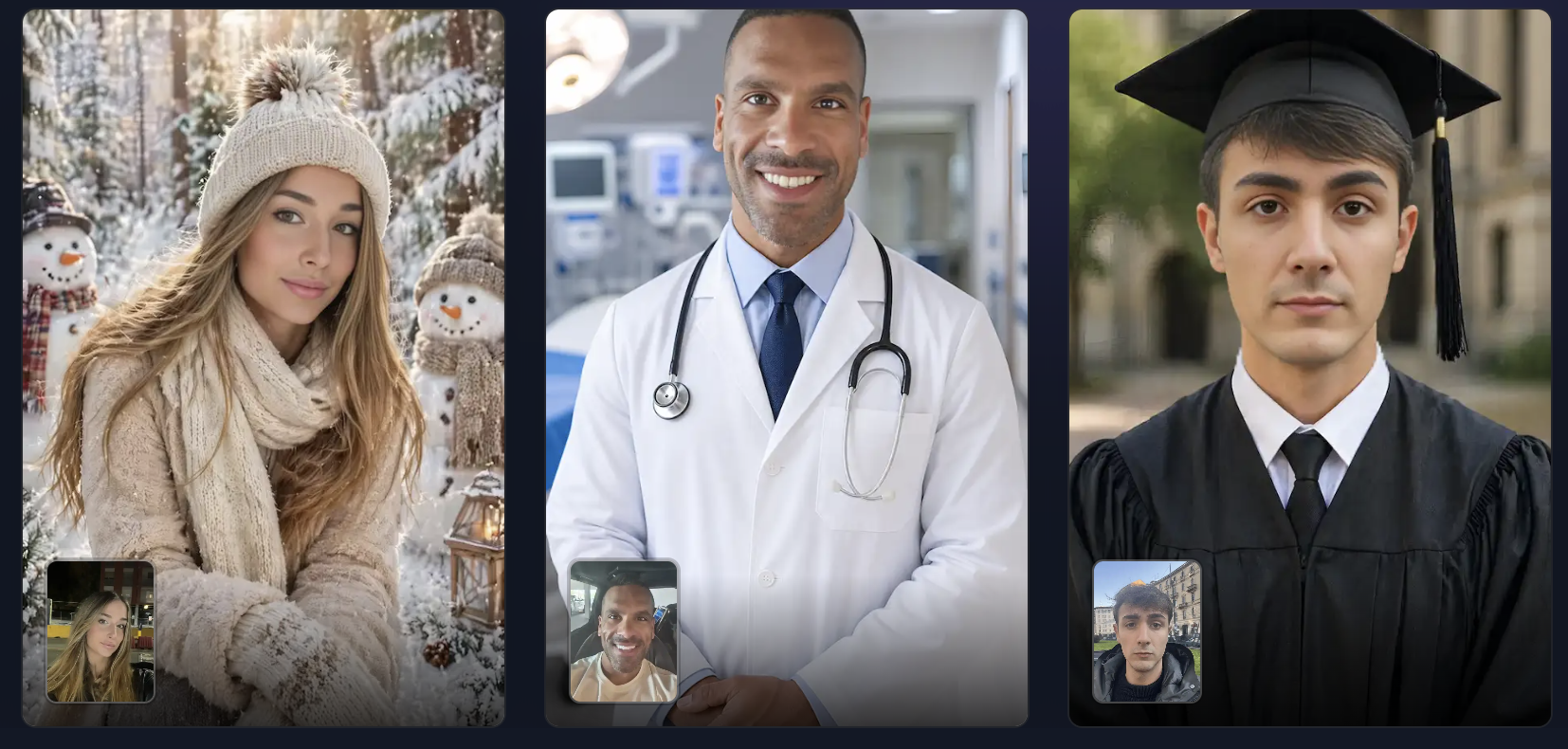
Images on these cards come from adjacent tools. They are not results from the AI headshot generator.
Quick answer
An AI headshot generator makes one portrait concept from a prompt or photo. It does not lock a likeness, remove a background, or replace a passport photo.
Use the AI headshot generator for an AI portrait or a LinkedIn headshot concept. The AI headshot generator does not make an ID photo or remove a background.
Default Grok Imagine returns up to 6 images at Standard quality and up to 4 at High quality. A reference photo limits that run to 1 image.
Use a photo you can publish. The face, age, and clothing can still change, even when a reference photo guides the run.
Last updated October 10, 2026
Examples
These recipes describe a portrait the AI headshot generator can attempt. They are writing examples, not saved headshots.
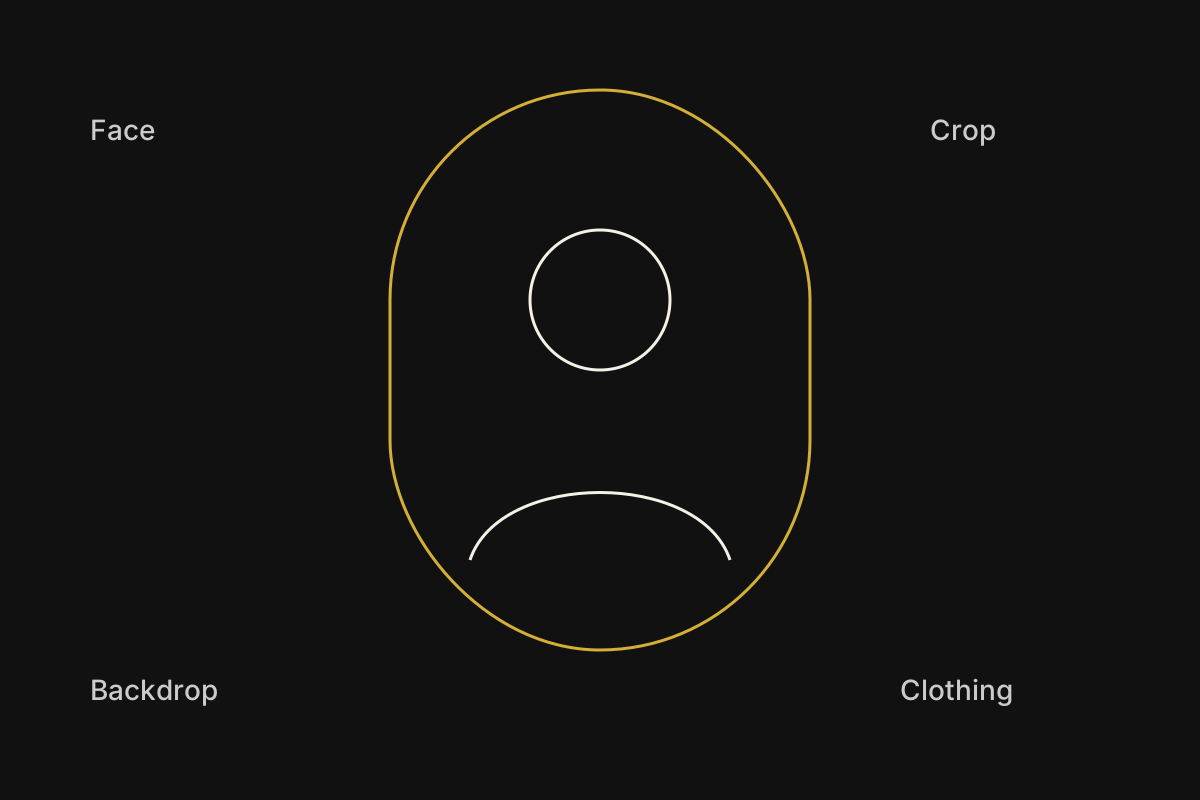
The diagram shows what to inspect on an AI headshot generator result: face, crop, backdrop, and clothing.
It is a review guide, not a portrait result. If the eyes or ears look wrong, generate the portrait again.
No saved result is shown here. Default Grok Imagine can return up to 6 images, and a reference photo limits that run to 1 image.
Prompt
One head-and-shoulders portrait, soft daylight, plain gray backdrop, navy collared shirt. Neutral expression, no glasses glare, no text, no logo.
Check
Check the eyes, ears, and collar. Reject extra fingers near the chin.
Prompt
One portrait from the chest up, overcast outdoor light, blurred green background, charcoal jacket. Natural skin texture, no text, no beauty filter.
Check
Confirm one person, two eyes, and a background that stays out of focus.
Prompt
One square-on portrait, even studio light, off-white backdrop, black crewneck. Shoulders level, no jewelry text, no watermark.
Check
Look for a level horizon and a backdrop with no letters.
Prompt
Use the reference photo only as a guide for hair and face shape. Make one head-and-shoulders portrait on a plain gray backdrop, simple dark shirt, no text.
Check
Compare hair and face shape with the photo. Expect one image, and expect differences.
Capabilities
The AI headshot generator has four controls. Each one changes the portrait. None of them locks a likeness or makes an ID photo.
The AI headshot generator builds one AI portrait from the crop, lighting, clothing, and backdrop you name. It returns an image, not a booking.
Start when you need a headshot-style still and do not have a studio booking. A portrait concept you can accept, edit, or generate again.
Add a reference photo you have the right to use. Grok Imagine then returns 1 image. The original photo stays unchanged, and the face can still differ.
Move a portrait closer to hair and face shape you already have. One related portrait, not a guaranteed likeness.
Name a plain backdrop or a blurred outdoor background, plus the shirt or jacket. The AI headshot generator does not remove a background from an existing file.
Ask for the setting directly instead of cutting a photo apart. A newly drawn portrait, not a transparent cutout.
After you accept the face, edit the still or enlarge it. The AI headshot generator does not replace the image editor or the upscaler.
Spend the next credit only when the portrait is already usable. A handoff to a revised still or a larger file.
Workflow
Follow four steps in the AI headshot generator. The prompt, settings, and result stay in this browser until you clear them.
Name the framing, backdrop, and shirt the AI headshot generator should draw. Say not to add text or a second person.
Switch the frame to 3:4 or 4:5 for a head-and-shoulders portrait. A wide frame crops the face too small.
After the AI headshot generator returns the images, check the eyes, ears, teeth, and clothing. A reference photo does not lock the person.
Download a portrait only if the face is acceptable for your purpose. Do not submit it as a passport, visa, or employee ID photo.
Choice
Match the job to the input before you spend credits. Only the one-portrait row is the main job of this AI headshot generator.
| Job | Starting input | Use it when | Go elsewhere when |
|---|---|---|---|
| One portrait concept | A crop, a backdrop, and a clothing note | You need one portrait image from the AI headshot generator. | You need a photographer, a printed proof, or a same-day studio slot. |
| Photo-guided portrait | One photo you can publish, plus a backdrop | You want that photo to influence a single portrait. | The face must match the photo closely enough for an ID check. |
| Background removal | An existing photo that needs a cutout | Do not ask the AI headshot generator to erase a background. | Use a dedicated cutout tool, or generate a new portrait with the backdrop described. |
| A larger file | A portrait you already accept | The portrait itself is already good. | Use the image upscaler for a larger file. It does not make the likeness more accurate. |
Use cases
Each job starts with a portrait description and ends with a concept you still have to review.
User. A freelancer who wants a plain portrait before booking a photographer.
Input. A backdrop color, a shirt, and a head-and-shoulders crop.
Action. The AI headshot generator makes one LinkedIn headshot concept, and the version with a level face is the one to keep.
Result. The draft is a concept. It is not a substitute for a studio booking when a real photo is required.
User. A person who wants a different shirt and backdrop from their own photo.
Input. A photo the person has the right to edit.
Action. The AI headshot generator makes one portrait so the face can be compared with the source.
Result. The result is a related portrait. Hair, age, and expression can still change.
User. A team lead comparing the same clothing note on gray and off-white.
Input. One clothing note, with only the backdrop changed between runs.
Action. The AI headshot generator makes each portrait separately. Any image with text or a second person should be rejected.
Result. The comparison stays visual. Neither file meets passport or badge rules.
Limits
Read these limits before you spend credits or submit the image anywhere official.
A reference photo can influence one run. The AI headshot generator does not guarantee that the result is the same person, age, or expression.
Passport, visa, license, and employee-badge rules need a real photo and specific dimensions. This portrait does not meet those rules.
The generator draws a new portrait. It does not cut a person out of an existing photo or return a transparent file.
Upload only a photo of yourself or a photo you have permission to edit. Do not use the tool to imitate a private person.
Grok Imagine accepts up to 5 reference photos and a prompt of up to 5000 characters. A reference photo limits that run to 1 image. Changing the model can change both caps.
New accounts start with 30 credits. Standard costs 20 credits per run and High costs 25 credits per run, so the starter balance can pay for one Standard run. A download may still require a credit pack or plan. Another model can show a different cost before you generate.
FAQ
Straight answers about what the AI headshot generator returns and what it refuses.
An AI headshot generator makes one portrait concept from a prompt or a photo you can publish. It does not lock a likeness, remove a background, or replace a passport photo. Default Grok Imagine can return up to 6 images at Standard quality and up to 4 at High quality. A reference photo limits that run to 1 image.
Do not count on it. The AI headshot generator does not lock a likeness. Compare the face, hair, and age before you use the image.
No. The AI headshot generator does not follow passport, visa, or employee-badge rules. Book a photo that meets those requirements.
Yes, when the selected model accepts a reference image. Grok Imagine accepts up to 5 photos and then returns 1 image. Use a photo you can publish. The original file stays as it was.
No. Ask for a backdrop in the prompt if you want a newly drawn setting. The AI headshot generator does not erase the background of an existing photo.
Next step
Open the AI headshot generator, describe one portrait, and compare the face before you use the image.
Generate a portrait