
Honey blonde
Prompt starter
Change only the hair color to honey blonde. Keep the face, hairstyle, clothing, background, and lighting.
Check
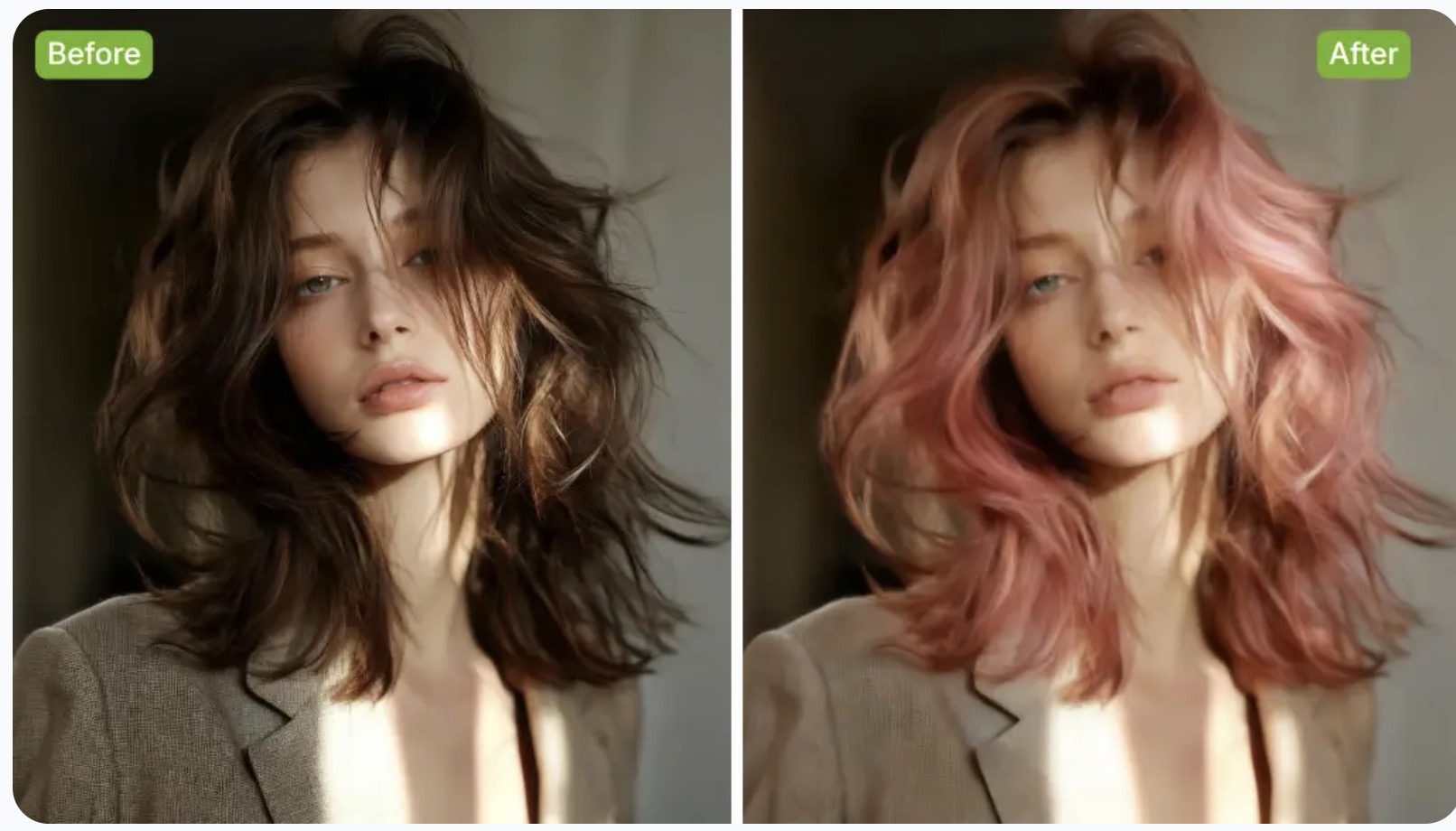
Compare the hair color changer preview with the original photo at the roots and hairline.
Hair color changer
Continue with the portrait
Images on these cards come from adjacent tools. They are not hair color results.
Quick answer
A hair color changer recolors hair in a portrait you upload. Name one shade, attach the photo, and default Grok Imagine returns 1 image. The preview does not predict a salon dye or lock the face.
Name a shade such as honey blonde, copper red, jet black, or soft lavender when you want to change hair color in a photo.
An AI hair color changer is a prompt edit of the portrait you attach. Default Grok Imagine returns 1 image with that photo. Skip the photo and the model invents a new person instead.
The preview is a virtual hair color idea for that portrait. That preview is not a dye formula and does not lock the face, hairline, hairstyle, clothes, or background.
Published October 10, 2026 · Last updated October 10, 2026
Examples
Use the hair color changer on a clear portrait, then compare the before and after at the hairline. The shade cards below are prompt starters, not saved results or a salon dye preview.
The diagram marks photo, shade, and review. It is a guide for a hair color changer preview, not a portrait result.
If the face, eyebrows, clothes, or background move, generate again and ask to change only the hair color.
No saved workbench result is shown here. A reference photo limits default Grok Imagine to 1 image.
| Check | Original photo | Preview |
|---|---|---|
| Hair color | The original portrait shows the current shade. | The preview should show only the shade you named. |
| Hairline and roots | The original hairline and roots stay visible. | Reject the preview when the hairline or roots move. |
| Face, clothes, and background | The original face, clothes, and background are the reference. | Generate again if the face, clothes, or background change. Those areas are not locked. |
Prompt starter
Change only the hair color to honey blonde. Keep the face, hairstyle, clothing, background, and lighting.
Check
Compare the hair color changer preview with the original photo at the roots and hairline.
Prompt starter
Change only the hair color to copper red. Keep the same length, part, clothes, and background.
Check
Look for orange spill on the eyebrows, collar, or wall.
Prompt starter
Change only the hair color to glossy jet black. Keep the face shape, hairstyle, and background.
Check
Look for lost strand detail and a flat helmet of color.
Prompt starter
Change only the hair color to soft lavender. Keep the face, clothes, and room unchanged.
Check
Look for purple light on the skin. A vivid shade should stay on the hair.
Capabilities
The hair color changer has four jobs. Each one stays on hair color. None of them predicts a salon dye.
Upload a portrait with the hair visible. The hair color changer uses that photo as the edit source and leaves the file you uploaded unchanged.
Benefit. You compare a shade on your own photo, not a stock face.
Output. A new image beside the original portrait.
Pick a named shade such as golden blonde, cherry red, or smoky lavender, or type your own. An AI hair color changer follows that shade. It is not a numbered salon dye chart.
Benefit. A specific color is clearer than a vague request to change hair color.
Output. A prompt that names one shade, plus roots or highlights only if you ask.
Ask the hair color changer to change only the hair color and keep the face, hairstyle, clothes, and background.
Benefit. The request tells the model what not to redesign.
Output. Guidance in the prompt. It is not a promise that every pixel outside the hair stays put.
After the color looks right, enlarge the portrait or edit something else. This edit does not replace the upscaler or the broader image editor.
Benefit. The next credit goes to a portrait you already accept.
Output. A handoff to a larger file, a background change, or a short clip.
Workflow
Follow four steps. The hair color changer keeps the prompt, photo, and result in this browser until you clear them.
Choose a photo where the hair, hairline, and face are easy to see. Hats, heavy shadow, and tight crops hide the area a hair color changer needs.
Name one shade, such as ash blonde or copper, when you change hair color. Add dark roots or soft highlights only when you want them.
Generate in the hair color changer, then compare hair, face, clothes, and background with the source photo. Default Grok Imagine returns 1 image when a reference photo is attached.
Keep the image only after the shade looks right. A larger file or a video still starts from that image, so fix the color before the next run.
When a hair color changer image is worth keeping, enlarge it with the AI image upscaler or change more than the hair in the AI image editor.
Choice
Match the job before you spend credits. Only a recolor of an existing portrait belongs in the hair color changer.
| Job | Starting input | Use it when | Go elsewhere when |
|---|---|---|---|
| Recolor hair in a photo | A selfie or portrait with hair visible | Use the hair color changer and name the shade. | Leave the hair color changer when you need a dye formula or an identical face. |
| New portrait from words | No photo, only a description | Do not use the hair color changer as an edit of your own hair. | Use the Grok image generator when you want a new portrait from words. |
| Clothes, background, or object edit | A photo that needs more than a new shade | Stay with the hair color changer only when the hair color is already acceptable. | Use the AI image editor when the photo needs a wider edit than hair color. |
| Larger file or a moving portrait | An edited still you already accept | Stay with the hair color changer only when the shade itself is already good. | Use the AI image upscaler for a larger file, or image to video for motion. |
For a portrait that does not exist yet, use the Grok image generator. For motion, open image to video.
Use cases
A hair color changer is only the preview. These three jobs start with a portrait and end with a review, not a booked appointment.
User. Someone comparing ash blonde with their current brown before an appointment.
Input. A front-facing selfie in even light, with the hair down or tied back but still visible.
Action. They upload that selfie to the hair color changer, name ash blonde, and compare the preview with the original before the appointment.
Result. A reference image to show a stylist. It is not a prediction of the dye on their real hair.
User. Someone updating a profile photo without booking a color appointment.
Input. The current profile portrait, cropped so the hair is not hidden by a hat.
Action. They ask to change only the hair color to chestnut brown, then check the hairline, earrings, and collar before posting.
Result. You get a chestnut-brown preview for the profile photo. Check the hairline before posting, because the face can still move.
User. A creator testing a wig color for cosplay or a story portrait.
Input. A costume photo where the hair or wig is visible and the face is clear.
Action. They name a vivid shade, such as silver or lavender, and reject any result that redesigns the face or costume.
Result. A color test for the character. The original costume photo stays available.
Limits
Read these limits before you trust a hair color changer preview or book a color appointment from it.
A hair color changer image is not a prediction of dye on your real hair. Starting color, hair condition, lighting, and the coloring process change the salon result.
A hair color changer can still move the face, hairline, length, eyebrows, or clothes. Look at those areas before you save or share the image.
To change hair color in photo edits you already have, attach that portrait first. If you do not upload a photo, the hair color changer creates a new person.
Grok Imagine accepts up to 5 reference photos and a prompt of up to 5000 characters. A reference photo limits that run to 1 image. Changing the model can change both caps.
Grok Imagine starts at 1:1 and 1K. For a portrait, switch to 3:4 or 9:16 before you generate so the crop is less square.
The hair color changer shows the credit cost before you generate. Another model can show a different cost. A download may require a credit pack or plan.
FAQ
Straight answers about the hair color changer, credits, and what the preview cannot promise.
Upload a clear portrait to the hair color changer, name the shade, and generate. With a reference photo, default Grok Imagine returns 1 image. Compare the hairline, face, clothes, and background before you save.
An AI hair color changer is a prompt edit that recolors hair in a portrait you upload. It is not a numbered shade wall and not a salon formula.
No. Ask the hair color changer to change only the hair color, then review the face. The hair color changer does not guarantee an identical face or hairstyle.
Yes. A hair color changer can try blonde, brown, red, black, or a bright shade such as soft lavender. Name dark roots or soft highlights only when you want them. Results depend on the photo, the wording, and the selected model.
No. A hair color changer preview is a picture to discuss with a stylist. The preview does not tell you the dye level, developer, or how the color will fade.
Next step
Open the hair color changer, upload a portrait, and check the hairline before you download.
Try a shade