
Person in a new room
Prompt
Combine the person from the first photo with the room in the second photo. Match the light, keep the face recognizable, do not add text or logos.
Check
Compare the face and the room corners with the two sources.
AI Image Combiner
Continue after the merged scene
Images on these cards come from adjacent tools. They are not results from the AI image combiner.
Quick answer
An AI image combiner merges people, products, or places from reference photos into one new scene.
Use it when the pictures should share light and space. It does not arrange files into a collage.
Default Grok Imagine returns up to 6 images at Standard quality and up to 4 at High quality. A reference photo limits that run to 1 image.
Faces, logos, and product shapes can change. The image stitcher is the tool for a side-by-side or grid layout of the original files.
Last updated October 10, 2026
Examples
These recipes describe a scene the AI image combiner can attempt. They are writing examples, not saved outputs.
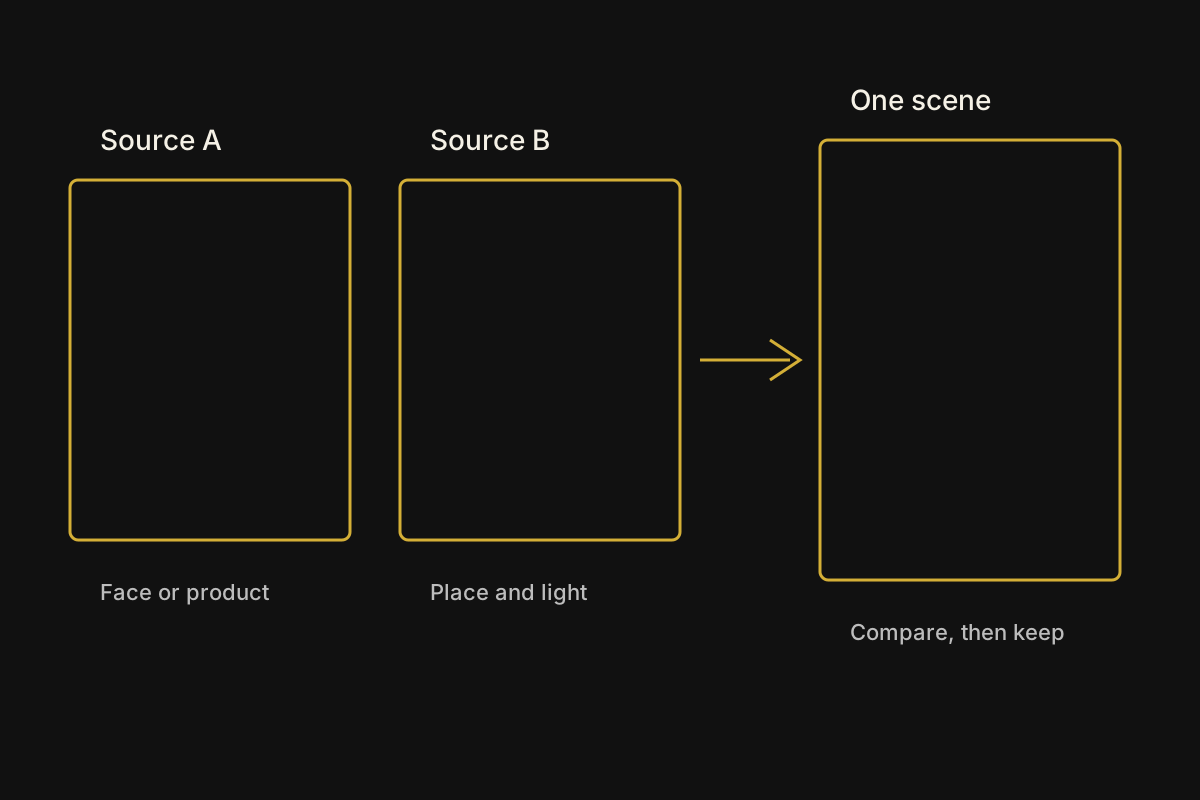
The diagram shows the check for an AI image combiner result: two sources in, one scene out, then a comparison of face, product edge, and light.
It is a workflow guide, not a merged photo. If a limb warps or a label appears, generate again or use the stitcher.
No saved result is shown here. A reference photo limits that run to 1 image.
Prompt
Combine the person from the first photo with the room in the second photo. Match the light, keep the face recognizable, do not add text or logos.
Check
Compare the face and the room corners with the two sources.
Prompt
Place the product from the first photo on the table from the second photo. Keep the product shape, use the room light, no extra packaging text.
Check
Look for warped edges, extra labels, and a shadow that sits on the table.
Prompt
Put both people from the reference photos on the same city sidewalk at dusk. Keep their outfits, leave a natural gap between them, no signs with readable words.
Check
Count two people and see whether either outfit changed color.
Prompt
A single wide photo of a cyclist and a small dog waiting at a rainy crosswalk, matched overcast light, no text, no logos.
Check
Use this only when you have no photos. It is a generated scene, not a merge.
Capabilities
The AI image combiner has four controls. Each one changes the new scene. None of them builds a collage from the original pixels.
The AI image combiner reads the uploaded photos and the scene you describe. Name which photo supplies the person, the product, or the place.
Ask for a shared place instead of a stack of files. One new image. The source files stay unchanged.
Grok Imagine accepts up to 5 reference photos. A reference run returns 1 image, so compare that result with the sources before you generate again.
Bring more than one subject into the same frame. A single merged attempt, not a contact sheet.
Starter prompts say what to take from each photo and what to leave out, including text and logos. Change only the place or the action.
Tell the model which photo does which job. A prompt aimed at one scene rather than a collage.
After the subjects sit in the same light, edit or enlarge the still. The AI image combiner does not replace the image editor, the upscaler, or the image stitcher.
Spend the next credit on a scene you already accept. A handoff to a revised still, a larger file, or a real grid.
Workflow
Follow four steps in the AI image combiner. The photos, prompt, and result stay in this browser until you clear them.
Upload the person, product, or place. In the prompt, say which photo supplies which part. Use photos you can publish.
Switch the AI image combiner to 3:2 or 16:9 when the scene needs room around the subjects. A square crop can cut one of them off.
A reference run returns 1 image. Check faces, product edges, and light direction against the sources. The tool does not prove a match.
Download only after the scene is usable. If you needed the original files side by side, use the image stitcher instead of another merge.
Choice
Match the job to the input before you spend credits. Only the merged-scene row is the main job of this AI image combiner.
| Job | Starting input | Use it when | Go elsewhere when |
|---|---|---|---|
| One merged scene | Two or more photos plus a short scene | You want the AI image combiner to make one new picture. | You need the original pixels placed in a grid. |
| Collage or contact sheet | Finished files that must stay intact | Do not force that job through the AI image combiner. | Use the image stitcher. It builds a local layout and does not regenerate the photos. |
| Scene from words only | A description and no photos | You can still generate a scene, but nothing is being combined. | Use the Grok image generator when there is no source photo. |
| Larger delivery file | A merged image you already accept | The scene itself is already good. | Use the AI image upscaler when only the pixel size is short. |
Use cases
Each job starts with specific photos and ends with a scene you still have to compare.
User. A creator wants a portrait to sit inside a room they photographed.
Input. The creator starts with a person photo and a separate room photo.
Action. The creator asks the AI image combiner to keep the face and use the room light.
Result. The review gets one scene. The face still needs a side-by-side check.
User. A seller wants a product photo in a table scene.
Input. The seller starts with a product cutout and a table photo they can use.
Action. The seller generates one scene and rejects any result that changes the product shape or invents a label.
Result. The listing test gets a scene, not a finished packshot.
User. A small team needs both people in one street photo.
Input. The team starts with two portraits and a short place description.
Action. The team asks the AI image combiner for one sidewalk scene and checks both outfits.
Result. The draft gets one group picture. It is not a photo of a real shared moment.
Limits
Read these limits before you spend credits or replace a collage with a generated scene.
The AI image combiner creates a new scene. It does not place the original files into rows, columns, or a panorama. Use the image stitcher for that layout.
A face, pet, or product can shift between the source and the result. Nothing in the AI image combiner scores identity. Compare them yourself.
Labels, signs, and packaging words are unreliable. Ask for no text, then replace any real wording from the source artwork.
The model can invent a shadow or blend an edge that was never in the photos. Reject a result that warps a product or a limb.
Grok Imagine accepts up to 5 reference photos and a prompt of up to 5000 characters. A reference photo limits that run to 1 image. Changing the model can change both caps.
Grok Imagine Standard costs 20 credits per run. High costs 25 credits per run. Another model can show a different cost before you generate. New accounts start with 30 credits, and a download may require a credit pack or plan.
FAQ
Straight answers about what the AI image combiner returns and what it refuses.
An AI image combiner makes one new scene from reference photos and a prompt. With photos, Grok Imagine returns 1 image. Without photos, default Grok Imagine can return up to 6 images at Standard quality and up to 4 at High quality. It is not a collage maker.
The image stitcher lays the original files into a local grid and does not regenerate them. The AI image combiner invents one scene, so edges and faces can change.
Grok Imagine accepts up to 5 reference photos and then returns 1 image. Name the role of each photo in the prompt. Another model can change that cap.
Not necessarily. Use a clear photo and ask the AI image combiner to keep the face recognizable, then compare the result with the source before you download it.
A text prompt creates a new scene, but it does not combine your files. Upload the photos when the subjects have to come from specific pictures.
Next step
Open the AI image combiner, name the role of each photo, and compare the scene with the sources before you edit it.
Combine images